
Tips and Instructions for Parents and Caregivers
MyChart is a secure online portal that provides information about your child's medical care and connects you to their Johns Hopkins Medicine health care team.
Use the drop down menu below to learn more about using MyChart to navigate your child's care.
-
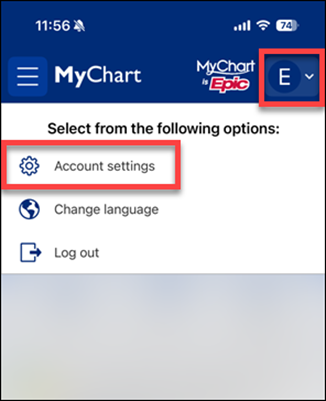
Tap your picture or initial in the top-right corner, then tap Account settings.
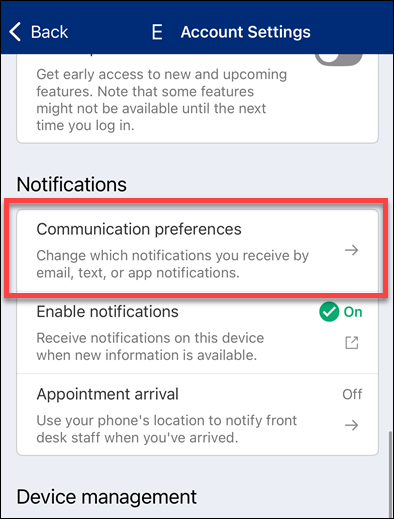
Scroll to Notifications and tap Communication Preferences.
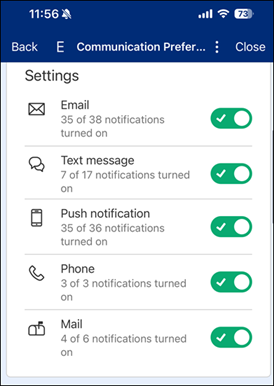
Turn contact methods (Email, Text, Push, Phone, Mail) on or off using the toggles.
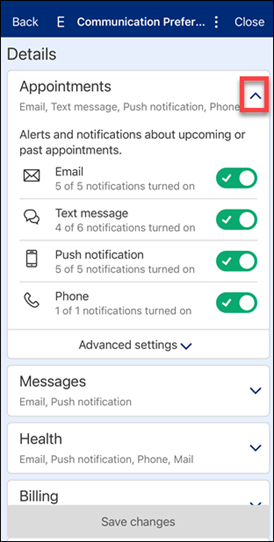
For detailed choices, scroll to Details and pick methods for each type (for example: Email on for messages, off for appointments)
-
If you have more than one organization, swipe left or right at the bottom to move between them.
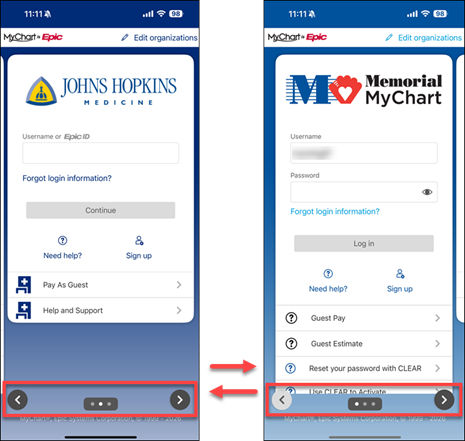
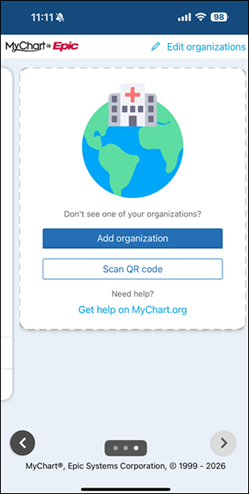
To add another organization, swipe to the far right and tap Add organization.
-
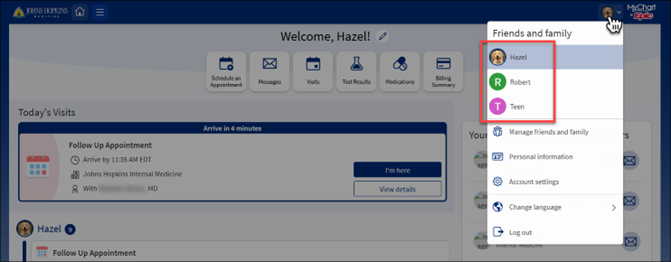
Tap your picture/initial (top-right), then select the patient you want to view.
-
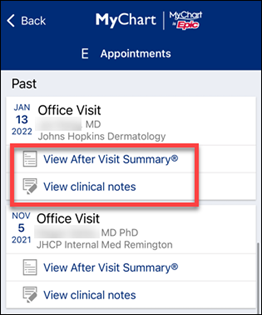
From the home screen tap Visits.
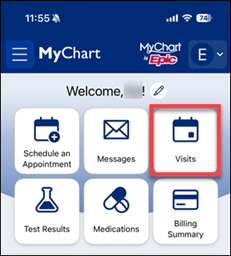
Select a visit, then choose View After Visit Summary or View clinical notes.
-
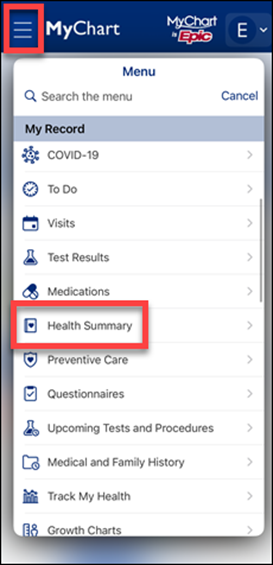
Tap the Menu (the three lines), then tap Health Summary under My Record.
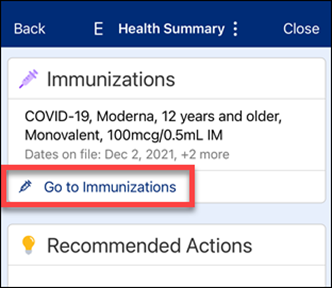
Tap Go to Immunizations to see your child’s shots.
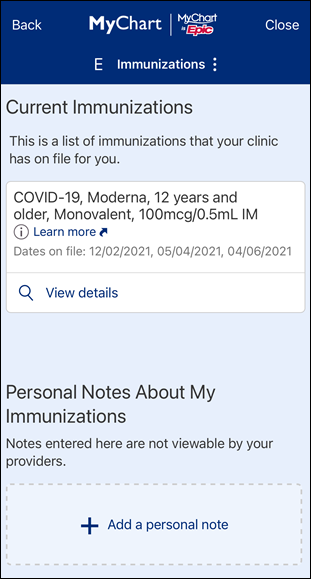
The list of immunizations will appear.
-
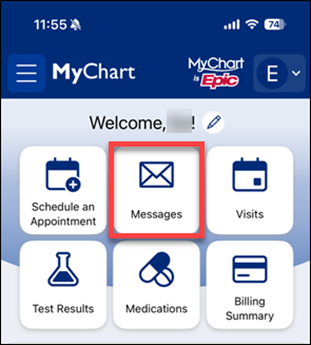
From the home screen tap Messages.
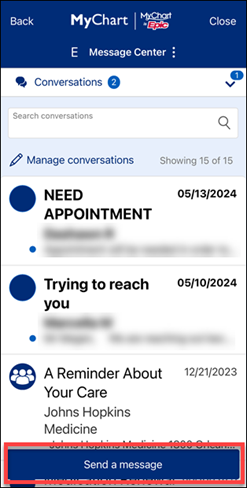
Tap Send a message from the button at the bottom to create a new message.
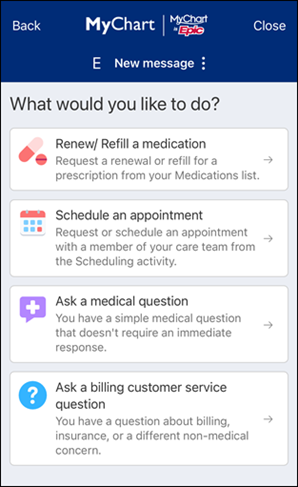
Choose the message type.
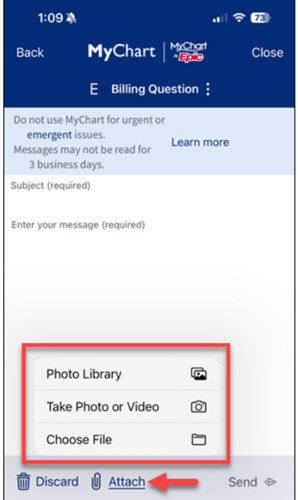
If you would like to attach a photo to the message, click “Attach” at the bottom of the message. You can use an existing image or take one using your device’s camera.
Note: some medical questions may have a charge.